
Some departments allow employees—such as instructors, program leaders, or contractors—to submit their own shifts for approval. These submitted shifts must be reviewed and approved by a manager before they are added to the schedule and included in timesheets.
When a shift is submitted for review the manager can:
1. Approve the submission
2. Reject the submission
3. Request Information about the submission
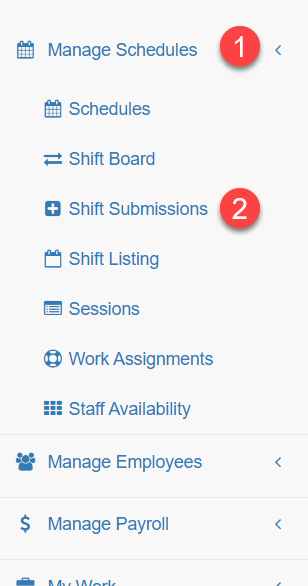
To access Shift Submissions go to the menu:
Manage Schedules - Shift Submissions
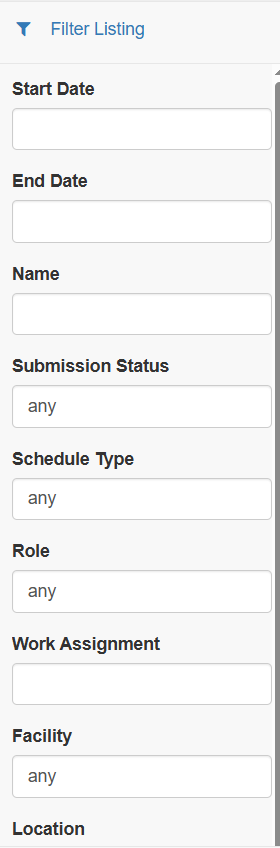
Filter on the appropriate information you want to look at.
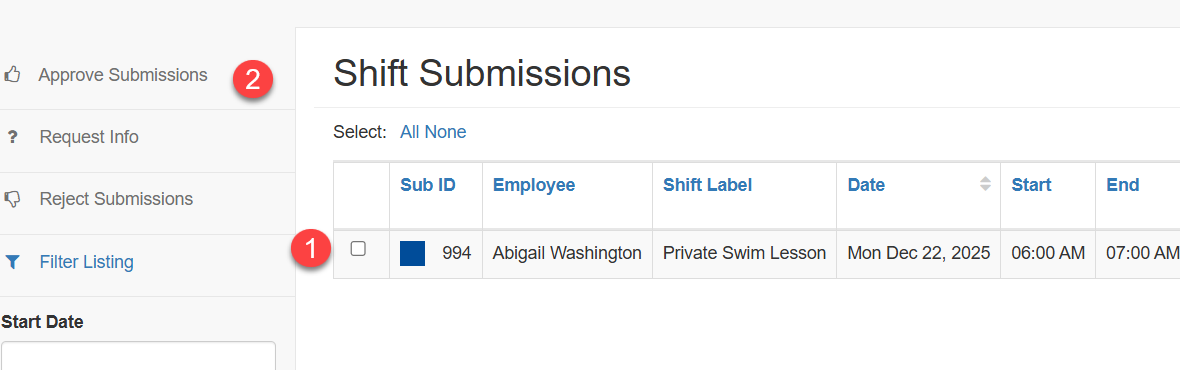
1. Approve Shift Submission
Click on the tick box of the shift you want to approve
Click on Approve Submissions
An email message will be sent to the employee notifying them the shift has been approved.
Note: A submitted shift will appear on the employees calendar but it will have the heading of Submitted. Once it is approved the heading is removed.
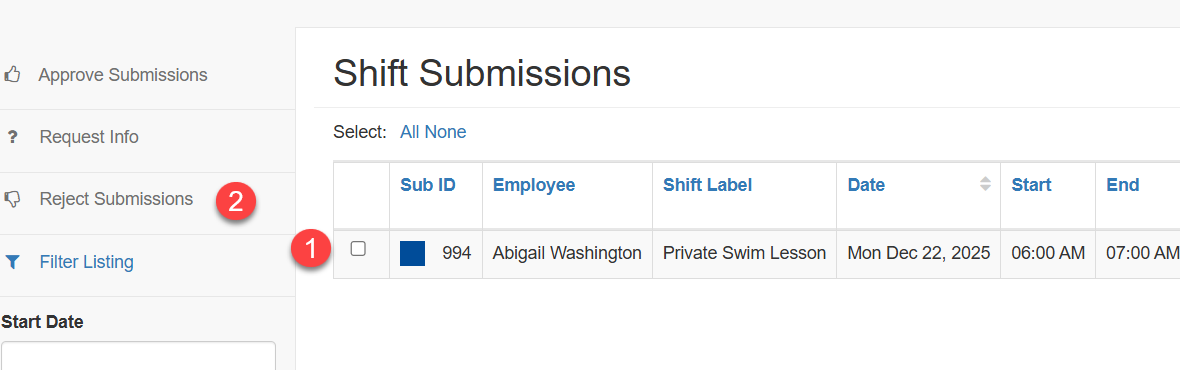
2. Reject Shift Submission
Click on the tick box of the shift you want to reject
Click on the Reject Submissions
An email message will be sent to the employee notifying them the shift has been rejected.
Note: The shift will be removed from the employees calendar.
3. Request Information
Click on the tick box of the shift you want to request further information on
Click on Request Info
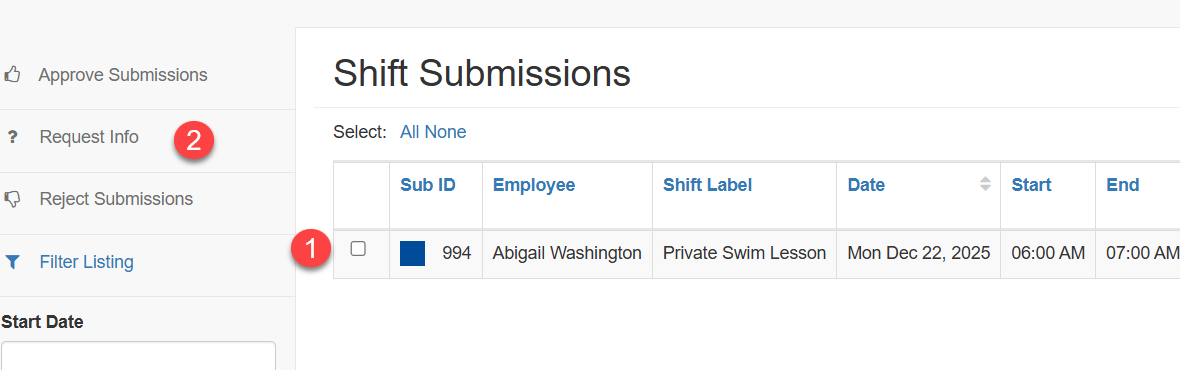
An email message will be sent to the employee notifying them their manager needs further information about the shift.
Note: At any time a manager can approve or reject a shift they have requested information on. They do not need to wait for the employee to resubmit the shift.