
Some departments allow staff—such as fitness instructors, program leaders, or specialized contractors—to submit their own shifts for approval. This allows staff to make sure the classes they delivered are captured on the schedule and flow directly into timesheets for supervisor approval.
Shifts can be added to any schedule that is not in the Completed state. Schedules are automatically marked as Completed four weeks after the schedule date.
Before staff can submit their own shifts, managers must complete two setup steps to allow this action to be taken. To review this process click here.
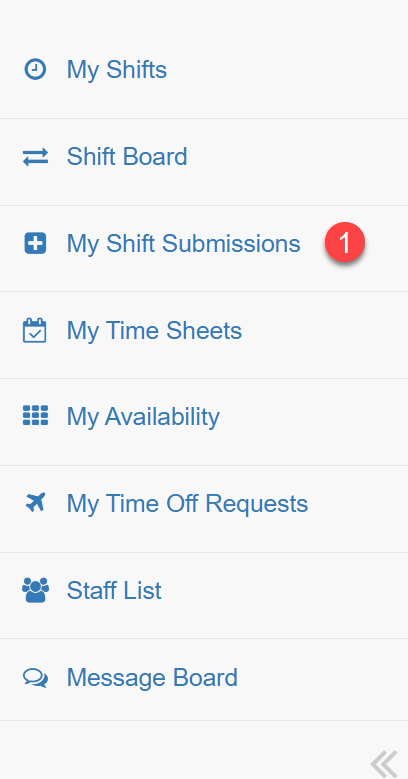
1. To add a shift click on My Shift Submissions menu option
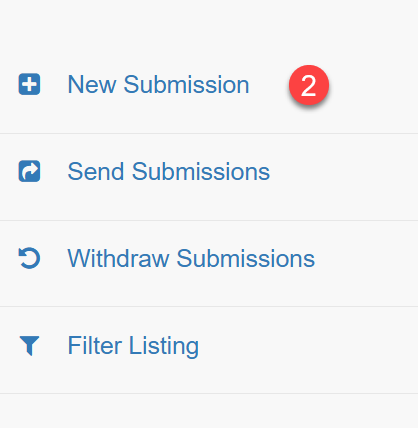
2. Click on New Submission
3. A shift detail dialogue will pop up called New Shift Submission which needs to be filled out
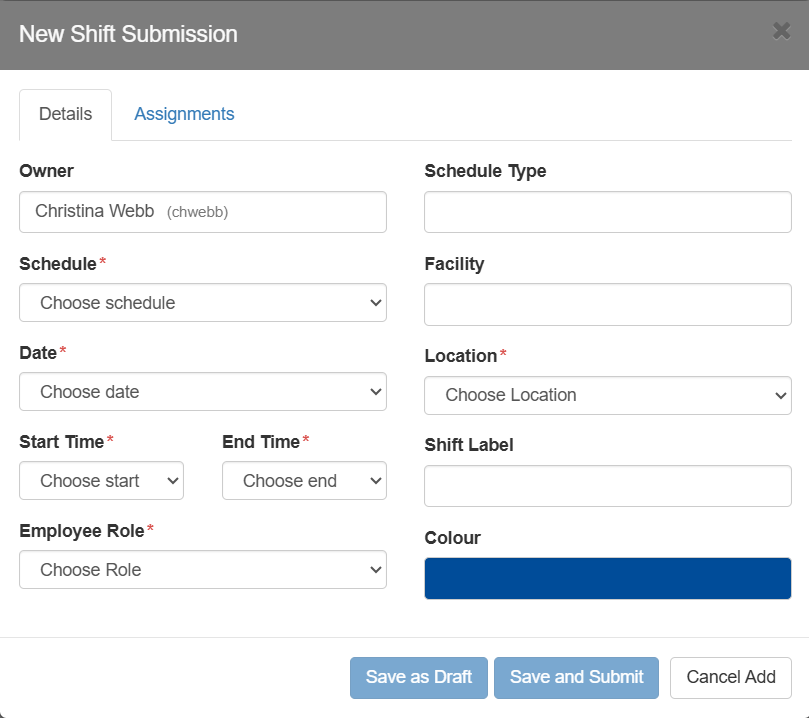
Once you have filled out all the necessary information you can add Work Assignment(s).
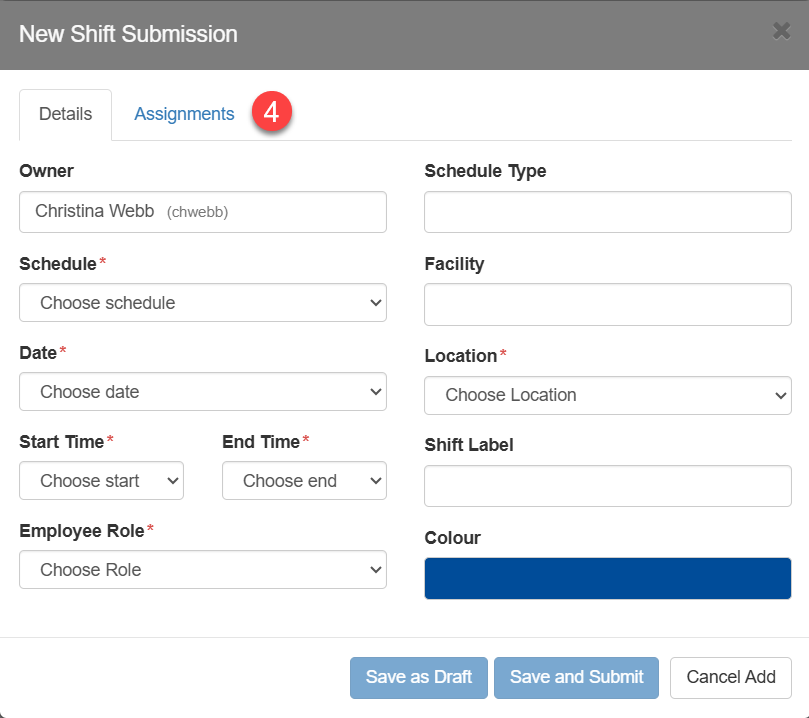
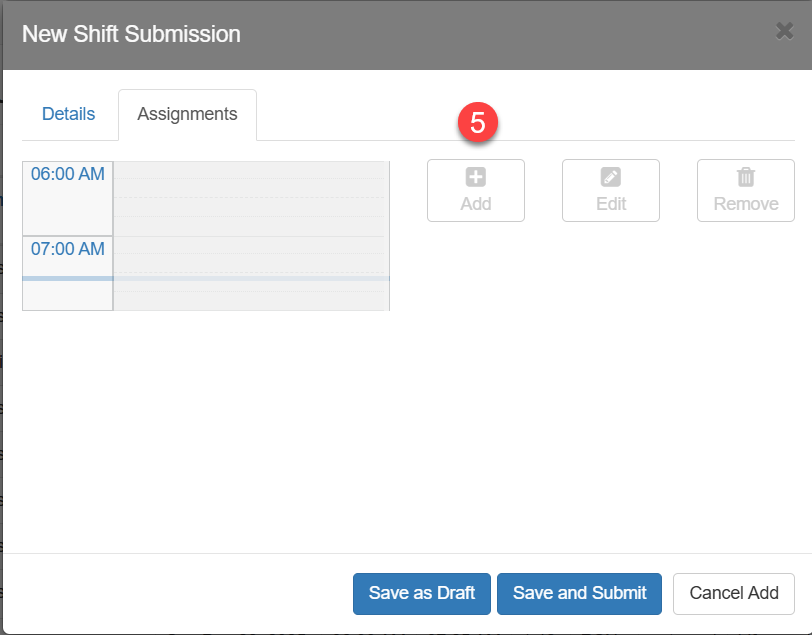
4. Click on the Assignments tab to open the work assignment dialogue
5. Click on the Add button to view the work assignments
Note: Only work assignments that have been made available to Shift Submitters will appear. To learn how to allow work assignments to be added by shift submitters click here.
6. Click on the work assignment from the drop down box
Note: If the work assignment is larger than the available space the system will reduce the size of the work assignment to fit.
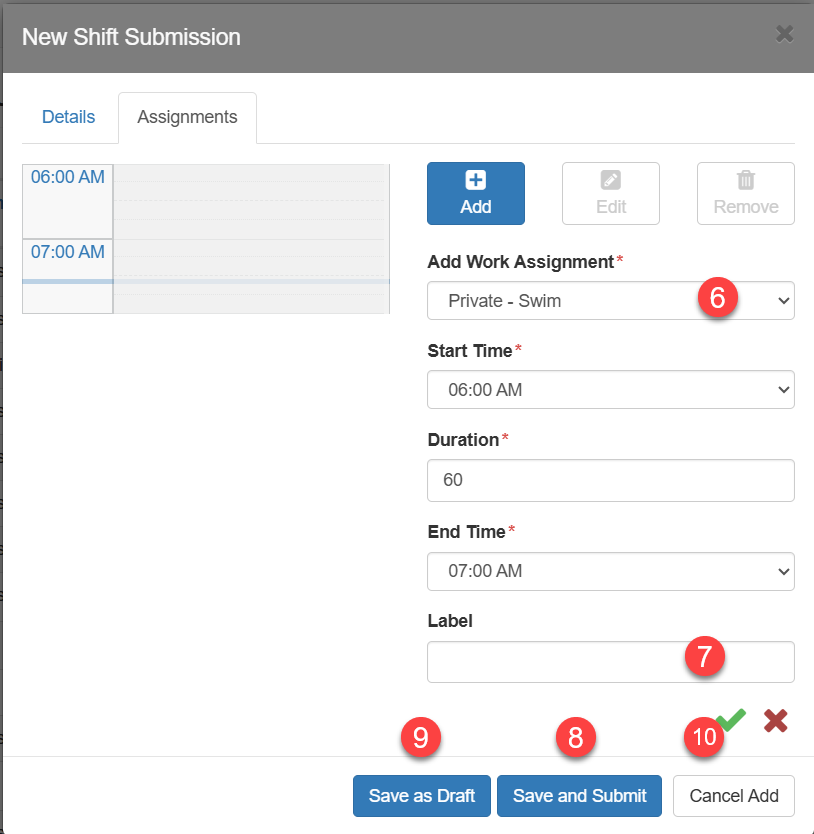
7. Click on the check mark to save the work assignment
Once everything is filled out you can:
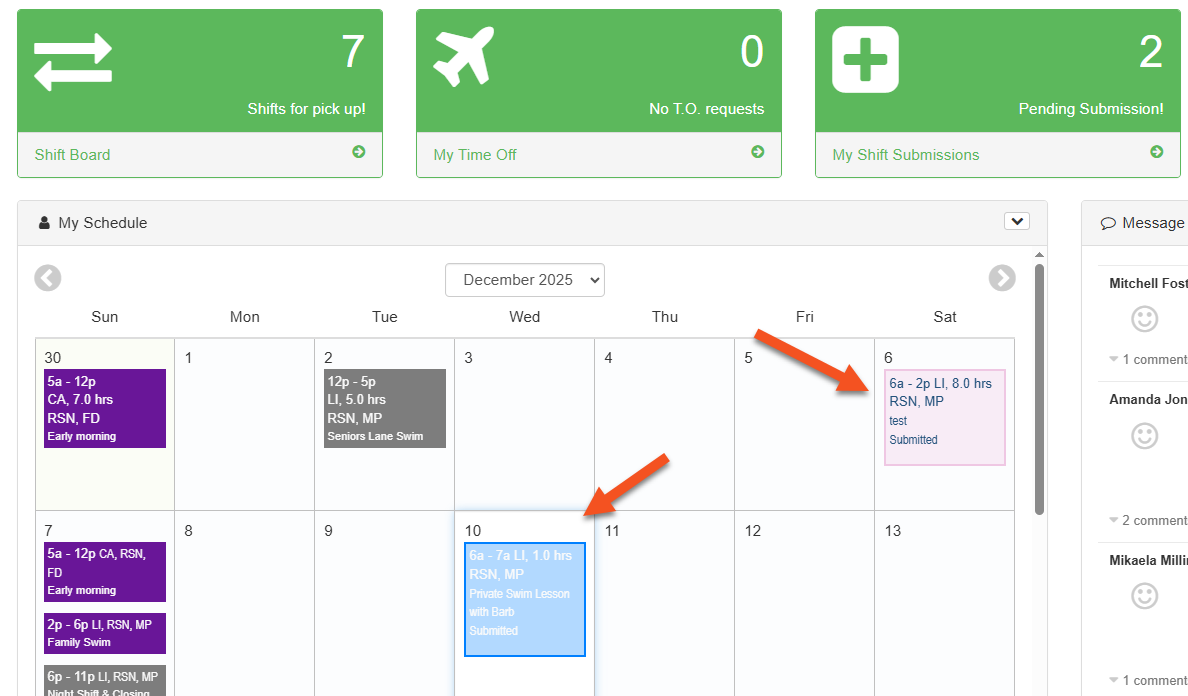
8. Save and Submit
Sends the shift to your manager for approval
Adds the shift to your calendar with a border and labelled Submitted
9. Save as Draft
- stores the shift until you're ready to submit it

Stored Drafts can be submitted to manager or withdrawn (deleted)
Send Submissions
1. Click tick box beside saved drafts
2. Click on Send Submissions

Withdraw Submissions
1. Click tick box for shifts you want to withdraw and then click the menu option Withdraw Submissions
10. Cancel Add
deletes the creation of the shift before a shift record is created