
Some departments allow staff—such as fitness instructors, program leaders, or specialized contractors—to submit their own shifts for approval. This feature makes it easier for staff to report the classes or programs they delivered that aren't included in regular programming and for supervisors to verify and approve them.
Before staff can submit their own shifts, managers must complete two setup steps.
1. Give Employee Permission to Submit Shifts
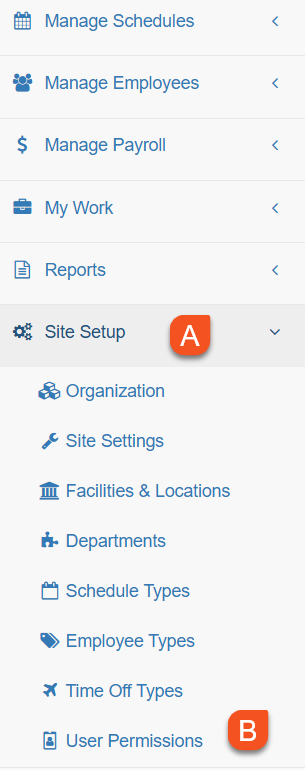
A. Click on Site Setup or Dept Setup depending on your system role
B. Click on User Permissions
C. Click on the employees' edit pencil in the Action Column
D. Click on the Submit Shifts column to enable the permission.

E. A check mark will appear in the Submit Shifts column.
F. Save the permission by clicking on the check mark in the Action Column

2. Assign Employee as a Shift Submitter on the Schedule Type
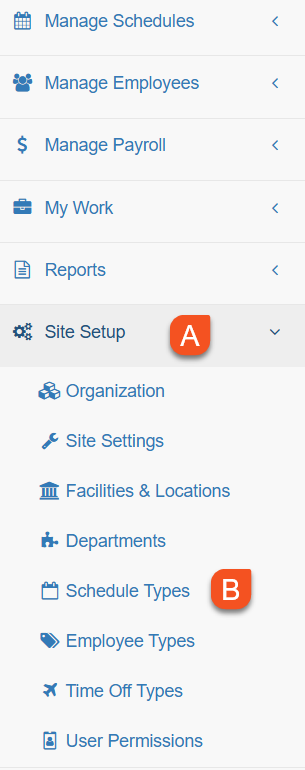
A. Click on Site Setup of Dept Setup depending on your system role
B. Click on Schedule Type
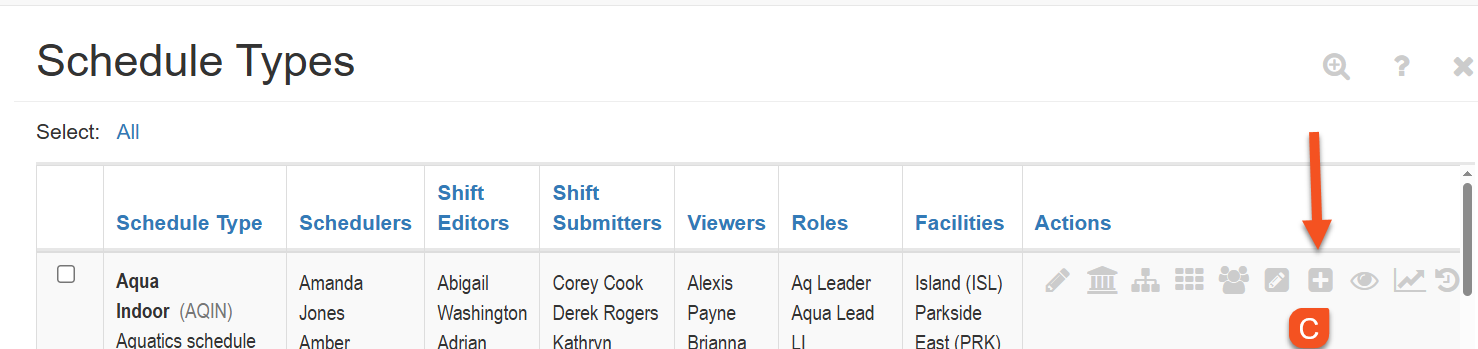
C. Click the + icon on the Action Column of the schedule type
Once the permission and schedule type setup is complete, the employee will be able to access the My Shift Submissions on their menu and submit shifts directly to their manager for approval.