In RecStaff, staff accounts can be closed or inactivated, depending on the situation.
Close an account when an employee is no longer working for you.
Inactivate an account when the employee is temporarily away, such as seasonal staff.
Inactive accounts do not count toward your subscription, so you are not charged while they are inactive. They are hidden from the system but can be reactivated at any time. When reactivated, all account history—roles, credentials, and other details—remains intact.
1. How to inactivate an employee account
To make an inactive employee active :
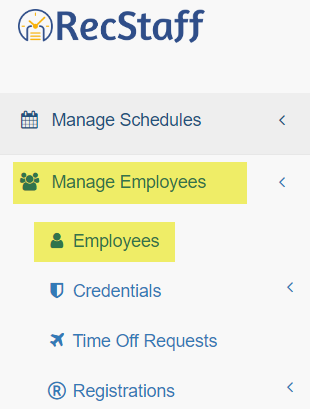
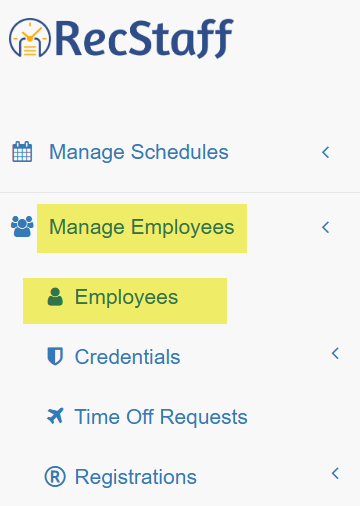
1. Click Manage Employees
2. Click Employees
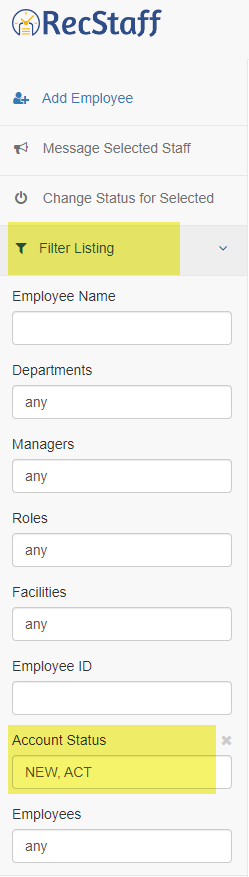
3. Click Filter Listing
4. Click Account Status to view the drop down box
5. Check Inactive accounts box because the default employee listing shows only New and Active accounts
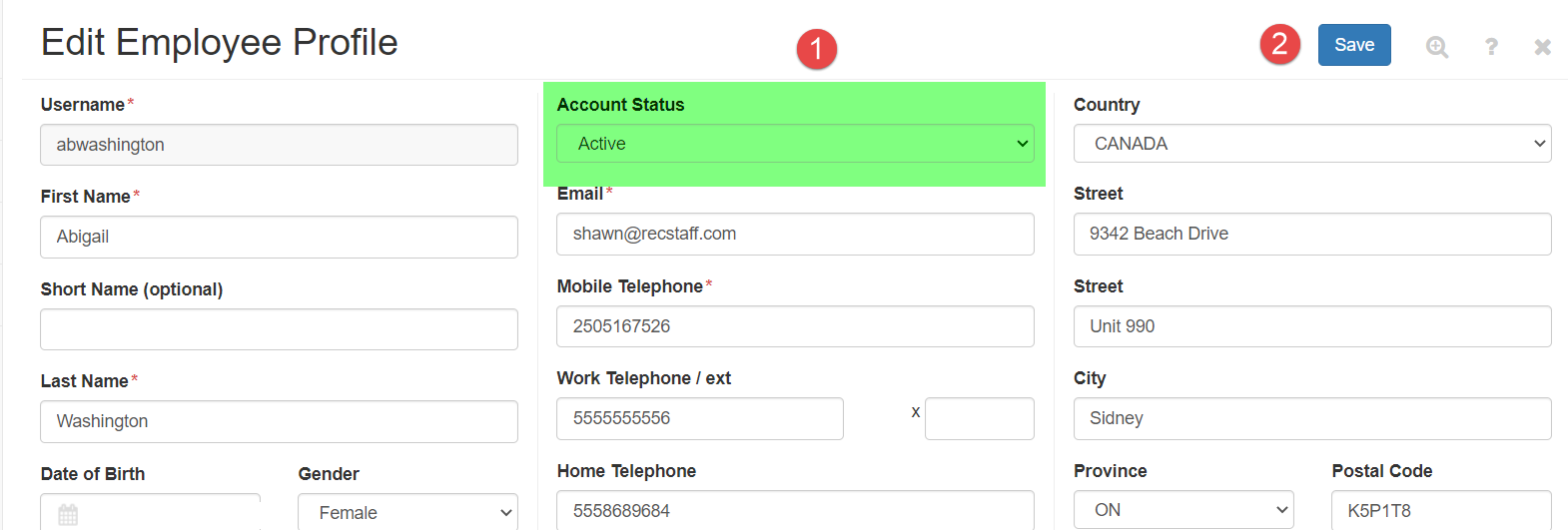
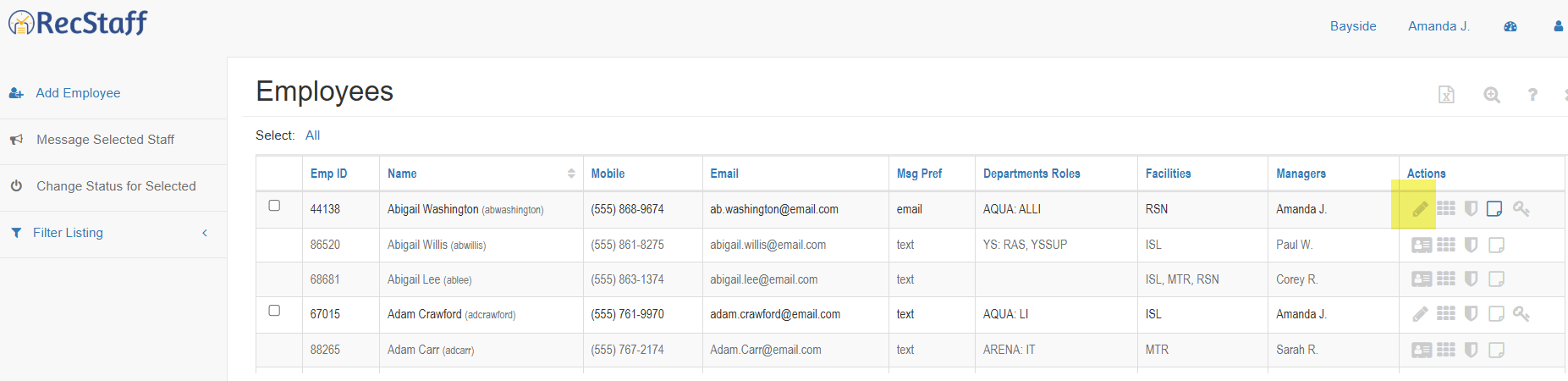
6. Under the Actions column click on the edit pencil icon of the employee you want to reactivate
7. Click on the Account Status drop down box to change the status to Active
8. Click Save to confirm changes.
Note: The account will now be active again and the employee will be able to log in now and will appear on the staff pick list to assign to shifts.

2. How to close an employee account
Click Manage Employees
Click Employees
Click on the edit pencil of the employee's account
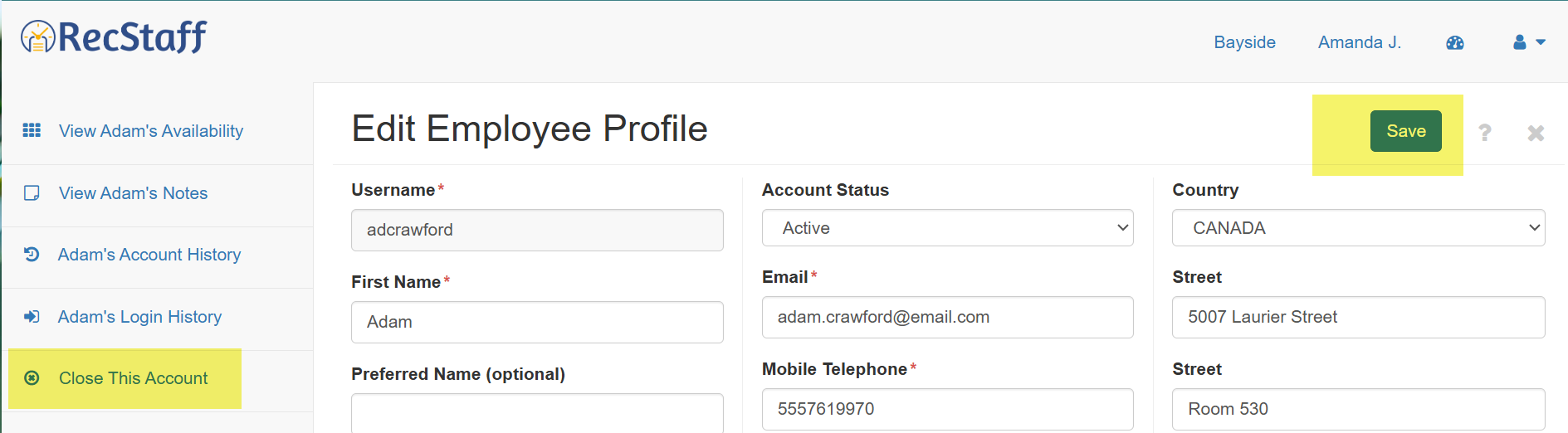
Click on the menu option Close This Account and then Save