
Copying your schedules from week to week without linking it week to week (recurring shifts).
1. Manage Schedules
2. Schedules
There are two ways to copy a schedule:
1. Click on the copy button of the schedule you want to copy
2. Tick the box of the schedule to copy and then click on the menu option Copy Existing Schedule
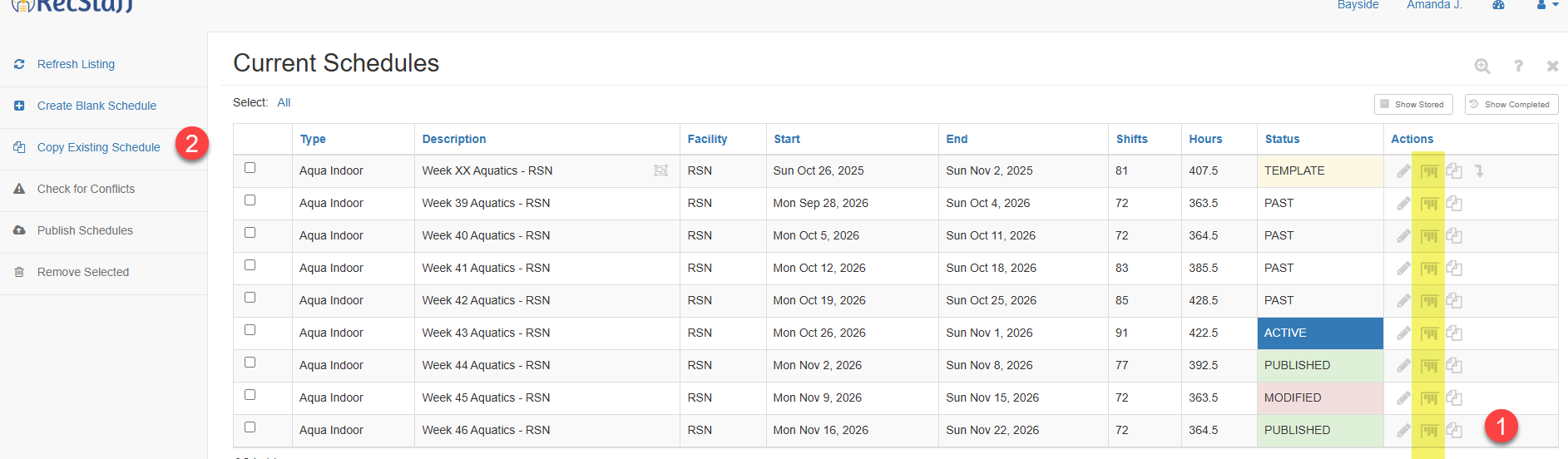
3. The Copying Schedule dialogue will appear
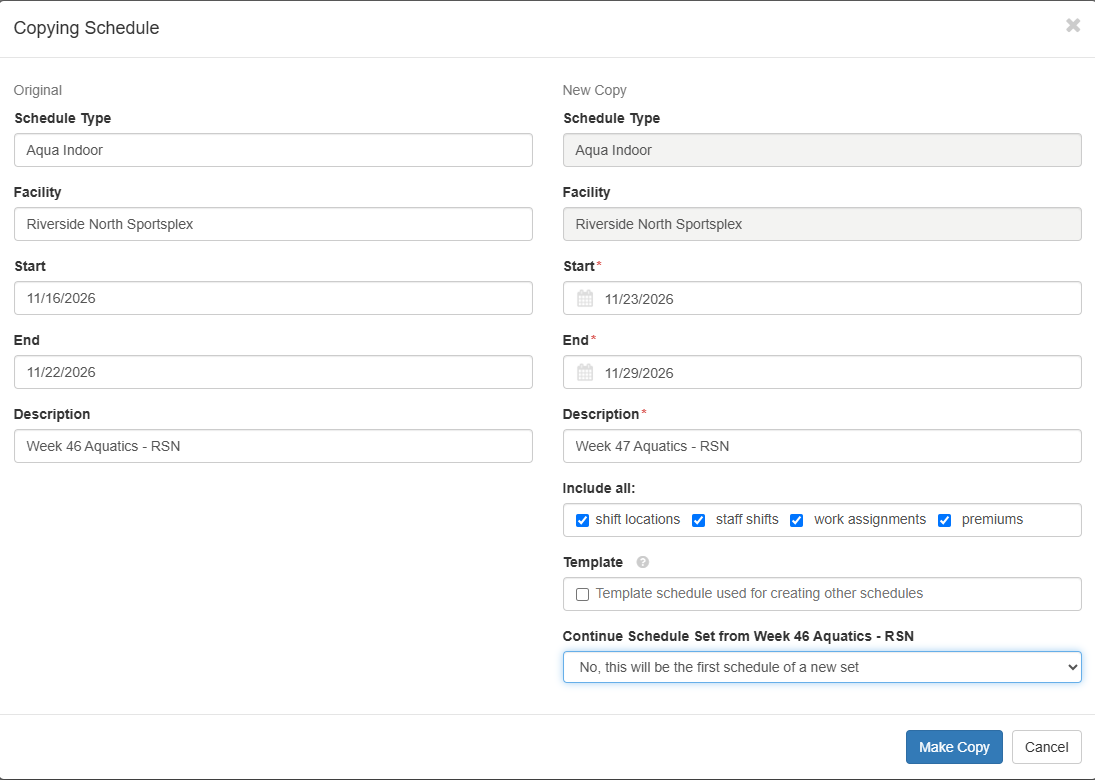
4. The left hand side of the screen is the original schedules information and the right hand side of the screen is the new schedules information
5. You need to add the start and end date. The system will automatically enter the next 7 days for the start and end dates after the original schedules end date. You can change this if need be by clicking on the calendar icon.
6. The description is the name of your schedule. You will need to be able to differentiate between your schedules using this description
Linking Shifts
7. Set the Continue Schedule Set ... to No by clicking on the down arrow to choose the No option when you do not want to link the shifts from the original schedule to the new copy. Alternatively, if you want to link the shifts leave the setting set to Yes.
8. Then click on the Make Copy icon to create the schedule
9. The schedule will then appear on your Current Schedules listing page
Pro Tip: Descriptions are often added referencing payroll. For example, Payroll 16 Week 1, Payroll 16 Week 2, ... this allows you to easily find the schedule you are looking for when scrolling through your schedules.