Work Codes are used to record specific work behaviours on individual shifts. They allow supervisors to quickly note when a staff member starts late, leaves early, calls in sick, does not show up, or exhibits any other defined behaviour that affects the shift. A shift can have only one work code assigned to it.
Adding a Work Code to a shift creates a clear, trackable record of what occurred. Over time, these entries can be reviewed through the Work Code Report, which summarizes work behaviours for a selected date range. The report shows how often each Work Code occurs and provides a percentage that reflects how consistently staff members work their scheduled shifts (Worked Shifts %).
Work Codes help supervisors identify patterns, support conversations with staff, and maintain accurate operational records.
Before applying Work Codes to shifts, you’ll need to create and configure the codes your organization plans to use.
Work codes can be created at the organization level and the department level. This means each department can maintain its own set of codes, or can use the default codes created at the organizational level.
Important Note About Changing Work Code Labels
If you have been using the default Work Code labels and decide to change them, keep in mind that the system does not create new codes it simply updates the labels on your existing ones. This means that all historical Work Code entries will display the new labels, even if those new labels no longer describe the original behaviour.
Because of this, you should run and save any historical Work Code reports before changing your labels. After the labels are updated, running reports for past dates may produce inaccurate results if the new labels do not represent the same types of shifts or behaviours.
Note: Only managers with Site Setup access can set the default work codes because they reside in the organization menu.
How to create default work codes for your organization
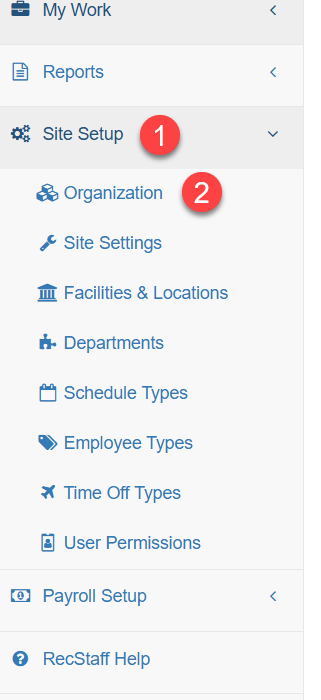
1. Click on Site Setup in the menu
2. Click on Organization
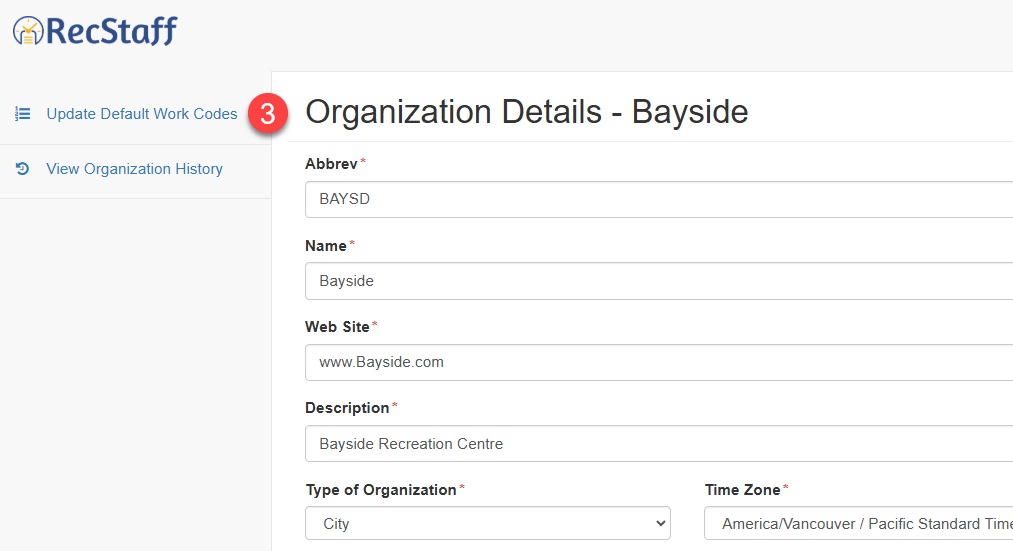
3. When the organization page appears click on the Update Default Work Codes
4. The work code table will appear. Defaults labels are provided and may have been in use until you choose to change them.
Note: The Worked work code cannot be changed and is automatically assigned to a shift if no other work code is added to it. The system assumes the shift was worked unless managers change the code or delete the shift.
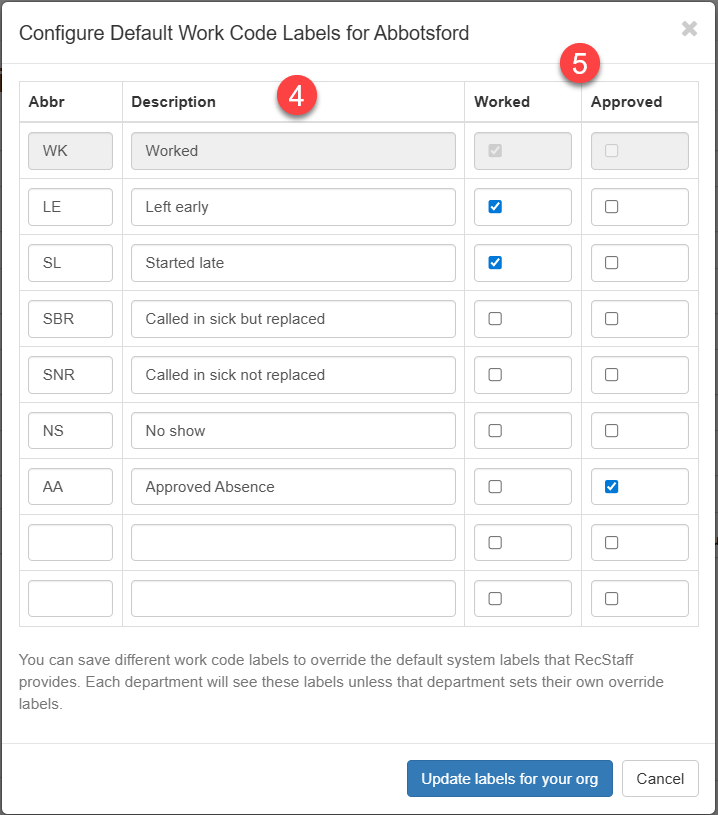
5. After you've added the new work code labels you must then determine if the code should be added to the worked shifts percentage. The worked shift percentage is a calculation to determine what percentage of shifts a staff member has worked.
Worked Column
Select this option if the work code label means the shift was actually worked. When checked, the shift is included in the Worked Shift Percentage calculation.
Approved Column
Select this option when the work code label means the shift was not worked, and should not be counted in the Worked Shift Percentage calculation.
This is typically used for situations where an employee was legitimately unavailable and should not be penalized. For example, if a shift was assigned while the employee was on approved vacation, the shift will be reassigned to someone else, but the version of the shift that was assigned to the employee on vacation should not be counted toward their worked shift percentage.
No Columns Checked
If neither the Worked nor Approved column is checked, the Work Code represents a shift that should be counted negatively in the Worked Shift Percentage calculation. In other words, the shift will reduce an employee’s worked percentage.
This is typically used for situations where the employee was scheduled but did not work, and the absence should count against their worked percentage.
For example, the default “Called in Sick but Replaced” code has no columns checked. When applied to a shift that an employee originally owned but did not work, that version of the shift will be included in the calculation and will lower their worked percentage.
When the shift is later picked up and worked by someone else, the system automatically applies a new “Worked” version of the shift for the replacement employee.
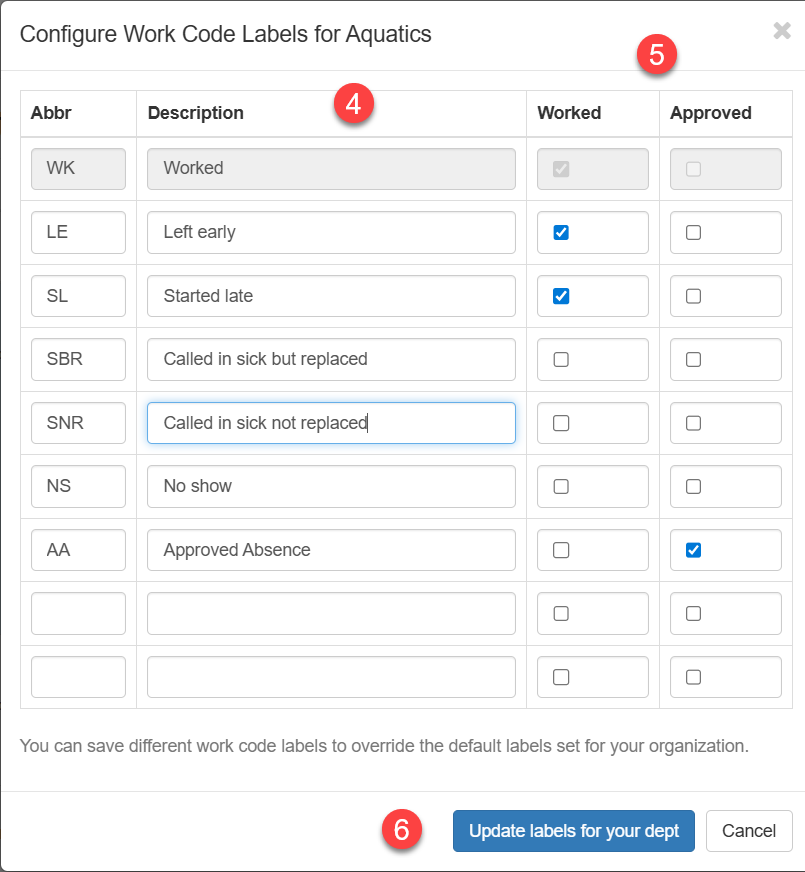
How to change default work codes for your department
1. Click on Site Setup or Dept Setup depending on your access level
2. Click on Departments
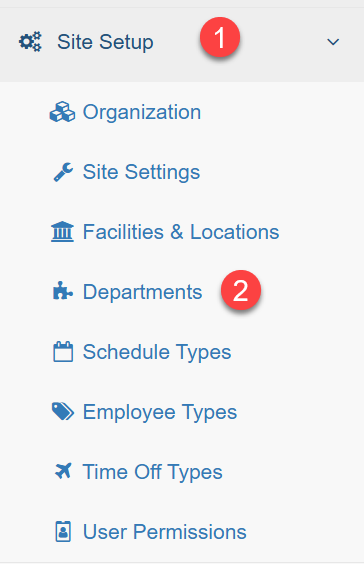
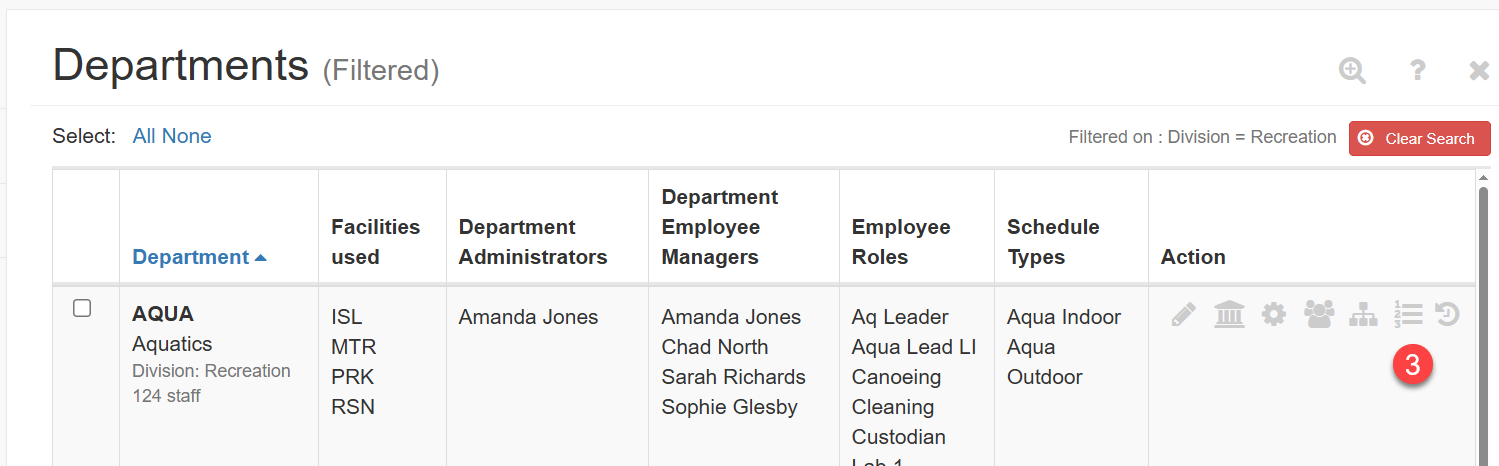
3. Click on the 123 icon under the Actions column for the department you want to modify
4. Add the Work Code Labels you want for your department
5. Tick Worked if you want the label to denote shifts that are worked. Tick Approved if you want the label to denote shifts that are exempt from the shift worked percentage calculation or leave blank if you want the label to denote shifts that will be counted against the shift worked percentage calculation. See above for a more detailed explanation of these 3 options.
6. Save by clicking Update labels for your dept at the bottom of the dialogue.